3ds Max AI Rendering
3ds Max AI — Photoreal Images from Your Viewport
Skip the long V-Ray or Corona pass for concepts: export a 3ds Max viewport and get a photoreal image in seconds.


 4.9110,000+ architects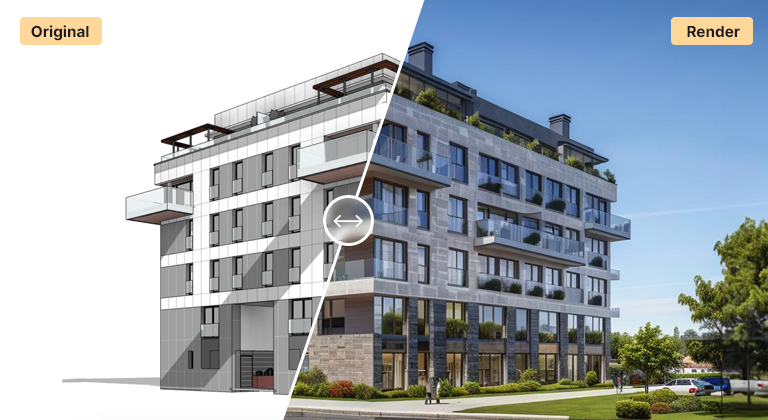
3ds Max AI rendering gives you a photorealistic image without committing a full V-Ray or Corona pass to it. Capture or export a 3ds Max viewport, upload it to AI Render Studio, and the AI adds materials, lighting, and atmosphere in seconds — perfect for the concept and iteration stages where waiting on a production render slows the design down.
Visualization artists use it to test compositions, camera angles, and mood before setting up the final scene, and to hand clients quick look-development options. Because a viewport grab is enough, you get a sense of the finished image long before materials and render settings are dialled in.
It complements rather than replaces your production pipeline: use AI rendering to explore and present early, then take the approved direction back into 3ds Max for the precise, high-fidelity final. Every AI result can be upscaled for sharper review images.
3ds Max AI rendering starts with a clean camera view. Use a Physical Camera with vertical tilt correction for exteriors, set the viewport to Default Shading or High Quality with shadows and ambient occlusion, and hide grids, helpers and gizmos. Capture the viewport with the built-in grab command or a quick low-sample render saved as PNG at a large size.
You do not need a finished material library to get a useful result. Basic diffuse colours that separate glass, frame, render and timber give the AI clear cues, and the prompt can describe the rest. Where client-approved materials already exist in your scene, a quick draft render carries them through more faithfully than a viewport grab.
The real value is upstream of your production pipeline. Test several camera angles, times of day and seasons with AI renders, agree on the strongest one with the client, and only then spend V-Ray or Corona render time. For exteriors the exterior renderer accepts a capture directly; for rooms, use the interior tool.
Scattered vegetation and heavy proxies slow the viewport and add little to an AI input. Hide them, or replace them with simple placeholders, and let the render add planting that suits the scene unless the exact species and placement matter.
Use cases
Who it’s for
Archviz studios
Present look-development options at the start of a project, agreeing camera and mood before any production render time is booked.
Interior visualisers
Test furniture styling, colour palettes and lighting moods on a room before building out the final scene in detail.
Developers’ marketing teams
Get early sales imagery from the visualiser’s working scene while the final hero renders are still in production.
Freelancers with tight deadlines
Respond to client feedback the same day with new options, instead of waiting for overnight renders to finish.
Workflow
Traditional rendering vs AI Render Studio
| Task | Traditional workflow | With AI Render Studio |
|---|---|---|
| Camera and mood test | Draft renders, often overnight | Capture each camera, render in seconds |
| Time-of-day study | Adjust sun and sky, re-render | Switch the lighting preset |
| Styling options | Swap furniture and materials | Describe each style in the prompt |
| Client review image | Production pass in V-Ray or Corona | AI render now, production later |
| Final marketing image | Production render plus post-work | Keep your production engine |
Tips
How to get the best results
Correct vertical tilt
Use the Physical Camera’s tilt correction so buildings stand straight. Converging verticals in the input carry through to the render.
Hide helpers and proxies
Turn off grids, lights, helpers and heavy scatter before capturing. They clutter the image and can be read as unwanted objects.
Separate materials by colour
Give glass, frames, walls and floors distinct diffuse colours. It is quick to set up and gives the AI clearer surface cues.
Capture larger than screen
Save the capture at a large size so fine details like mullions, skirting and railings keep enough pixels to render cleanly.
FAQ
Frequently asked questions
Do I need V-Ray or Corona to use this?
No. A plain 3ds Max viewport capture or screenshot is enough — the AI generates the photorealistic image. It is meant to save you the long render pass during concept and iteration work.
Will it replace my production renders?
For final, spec-accurate marketing imagery, a production engine still wins. AI rendering is fastest for early exploration, look development, and client options — many artists use both.
What should I export from 3ds Max?
A clear viewport capture or a quick shaded render saved as PNG or JPG. Readable geometry and a good camera angle give the AI the most to work with.
Do I need a 3ds Max plugin?
No. AI Render Studio works in the browser from an image export, so there is nothing to install in 3ds Max and no conflict with V-Ray, Corona or other plugins. Save a viewport capture or a quick draft render as PNG or JPG and upload it.
Does the AI keep my 3ds Max scene composition?
Yes. The camera, massing, openings and layout of your capture are kept, while materials, lighting and context are added on top. Small details can be simplified, so check fine elements before presenting. For exact, specification-accurate imagery, take the approved view through your production engine.
What resolution are the renders?
Renders download at high resolution for screens and client reviews. For larger prints or detailed crops, run the chosen image through the built-in upscaler to add sharpness. Starting from a large capture helps too, because the AI has more detail to work from.
Keep exploring
Related tools
Start free
Try AI Render Studio now.
Turn a sketch, model or photo into a photoreal render in seconds. 3 free credits, no credit card.