Enscape AI
Enscape AI: What It Includes and How to Add AI Rendering
Enscape has its own AI tools. Here is what they do, plus a quick way to turn an Enscape view into an AI render in about 30 seconds.


 4.9110,000+ architects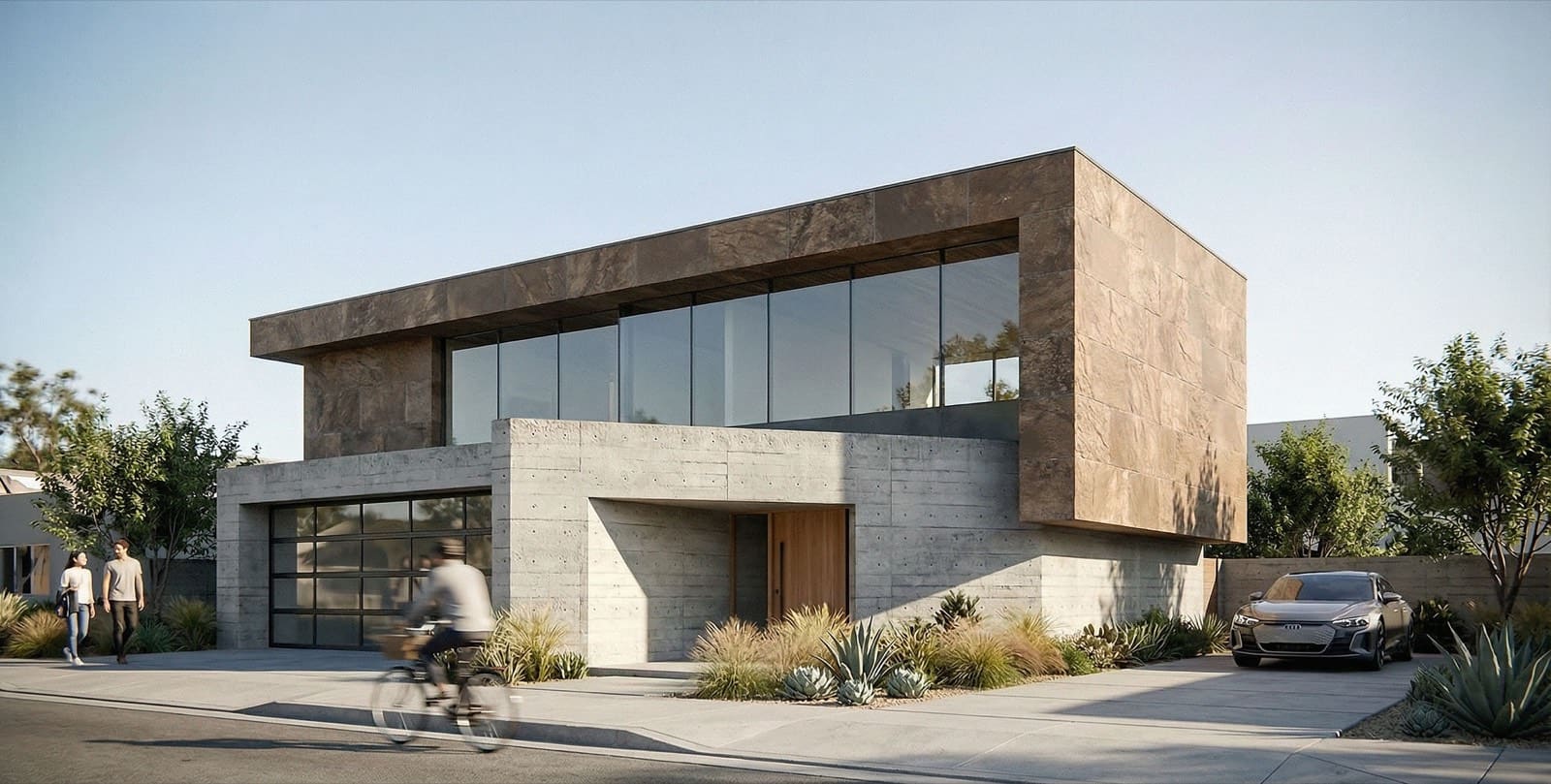
Enscape AI covers two questions. What AI does Enscape itself ship? And how do you use AI rendering with an Enscape view? This page answers both. Enscape and Chaos do offer AI tools. AI Render Studio adds another route: export a view from Enscape and get a render in about 30 seconds.
Chaos’s own pages list several Enscape AI tools. The Chaos AI Enhancer improves people and vegetation. Veras generates design variations from your 3D model in the Enscape viewport. An AI Material Generator sits in the Material Editor, and the Envision AI assistant takes prompts. Chaos says the AI features need an internet connection.
AI Render Studio works from an image, so it fits before and beside Enscape. Take a screenshot from Enscape, or from the Revit, SketchUp or Rhino model underneath, upload it, and pick a render tool. It suits early concept stages and quick options, and it also helps on machines that fall short of Enscape’s GPU needs. It does not replace Enscape.
Which Enscape AI tool does what? Chaos describes the AI Enhancer as a tool for people and vegetation. In Enscape you enable it in the Render window, and it needs a logged-in Chaos account, a non-trial licence and Chaos Credits. Veras is aimed at variations: it generates design options from your model geometry. Both work from within your Enscape workflow, so they fit best once a model and viewpoint are in place.
AI Render Studio starts from a plain image. A clay view from SketchUp, a Revit camera or a Rhino viewport is enough, so you can use it before materials, assets or lighting are set up in Enscape. See the Revit and SketchUp guides below for export tips.
Hardware is another reason people search for an Enscape AI render route. Enscape needs a dedicated GPU with 4 GB of VRAM at minimum, and Chaos recommends 8 GB. Integrated GPUs are supported on Windows, but without ray tracing or VR. A browser-based tool has no such requirement, so a modest laptop can still produce concept images. The Revit AI rendering guide covers the export step.
When you need a live model, VR, or exact material and lighting control, stay in Enscape. Use the AI render for the stage when you are still testing ideas.
Use cases
Who it’s for
Enscape AI rendering for early concept stages
Export a simple view before you set up Enscape materials and assets, and test mood and materials in one go.
Quick options for a client meeting
Turn a few viewpoints into comparable images the same day, then continue the chosen direction in Enscape.
Machines below Enscape’s GPU needs
If your laptop has no dedicated GPU with 4 GB of VRAM, you can still produce a presentable image from an exported view.
Variations of an Enscape screenshot
Upload an Enscape capture and try a different time of day or material mood as a design variation.
Workflow
Traditional rendering vs AI Render Studio
| Task | Traditional workflow | With AI Render Studio |
|---|---|---|
| First concept view | Set up assets, materials and lighting | Export a view from the model, then render it |
| Option comparison | Edit the model for each option | Upload one view per option |
| Low-spec machine | Needs a supported GPU | Runs in the browser |
| Live design review | Built for it in Enscape | Stay in Enscape |
| Final view | Full control in Enscape | Use the AI render as a reference |
Tips
How to get the best results
Export a clean capture
Hide the UI and helper objects, and export larger than your screen so edges stay crisp.
Pick the tool that matches the view
Use the exterior tool for building views and the interior tool for rooms. Matching the tool to the image gives clearer results.
Describe the setting
Say what the materials are and where the building sits. A short prompt about time of day and surroundings helps.
Check against your model
AI can change small details. Compare each result with your model before it goes in a presentation.
FAQ
Frequently asked questions
Does Enscape have AI?
Yes. According to Chaos’s own pages, Enscape works with the Chaos AI Enhancer, which improves people, vegetation and surfaces, and with Veras, which generates design variations in the Enscape viewport. Enscape also has an AI Material Generator in the Material Editor and the Envision AI assistant. Veras is a separate subscription, or included in Enscape Premium or Collection. Check the Chaos site for current terms.
Can I AI render an Enscape view with AI Render Studio?
Yes. Export a screenshot from Enscape, upload it to the render tool that fits the view, and generate a render in about 30 seconds. New accounts get 3 free credits with no credit card. Compare the result with your model before sharing it.
Is this a replacement for Enscape?
No. Enscape gives you a live, linked view of your model, so changes show as you design. AI Render Studio gives you quick stylised images from a screenshot. Many teams will use both, with AI for early options and Enscape for live design review.
What does the Chaos AI Enhancer do in Enscape?
Chaos describes it as improving the realism of people and vegetation in your Enscape images. You switch it on in the Render window. It needs a Chaos account, a non-trial licence and Chaos Credits, and it uploads the image to Chaos Cloud. Check the Chaos documentation for current limits.
How is AI Render Studio different from the Enscape AI Enhancer?
The Enscape AI Enhancer improves people and vegetation in images rendered from Enscape. AI Render Studio works on any exported image, including views from SketchUp, Revit or Rhino. The two can sit side by side in one workflow.
Can I use the renders commercially?
Every paid plan and credit pack includes full commercial rights. Renders made with the free credits are not covered, so use a paid plan or pack for client work. Plans start at $19 a month, and one-time credit packs never expire.
Keep exploring
Related tools
Start free
Try AI Render Studio now.
Turn a sketch, model or photo into a photoreal render in seconds. 3 free credits, no credit card.