How to Render in SketchUp
AI Render Studio Team · May 29, 2026
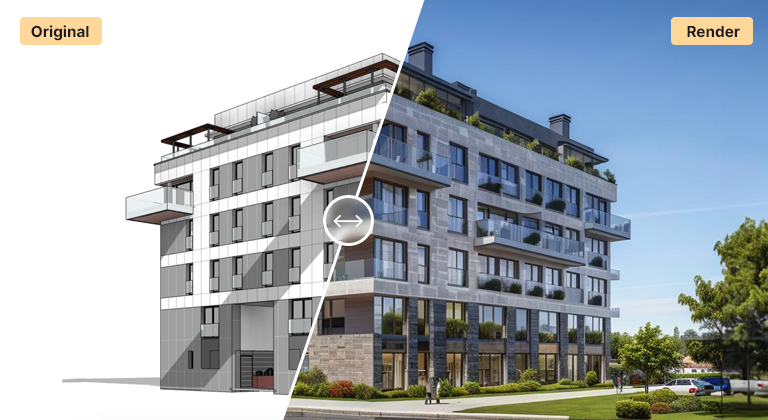
Rendering a SketchUp model traditionally means installing a plugin like V-Ray or Enscape, setting up materials and lights, and waiting for a render. There is a faster route for concept and presentation work: render your SketchUp viewport with AI, directly from a screenshot, with no plugin to install.
Step 1 — Set up your SketchUp view
Frame the view you want in SketchUp. A clean, well-composed viewport with clear geometry gives the AI the most to work with. You do not need materials applied — a plain or white model often produces the most dramatic transformation.
Step 2 — Export or screenshot the viewport
Export the current view as an image (File → Export → 2D Graphic), or simply take a high-resolution screenshot of the viewport. This image is your input — no model file upload required.
Step 3 — Upload to an AI renderer
Open the exterior or interior tool in AI Render Studio and upload your exported view. Because it runs in the browser, this works the same on Windows and Mac.
Step 4 — Choose a style and render
Pick an architectural style and lighting, or describe the look in a prompt. Generate the render — it returns in about 30 seconds — then iterate on style, lighting and materials, or generate several variations to compare.
When to use AI vs a SketchUp plugin
Use AI rendering for concepts, design reviews and fast option studies where speed matters. Keep a SketchUp render plugin for final, fully art-directed marketing imagery that needs precise material and lighting control. For most day-to-day visuals, the AI route is dramatically faster.
See also our AI rendering guide and best AI rendering software.
FAQ
Do I need a plugin to render a SketchUp model with AI?
No. You export or screenshot the SketchUp viewport and upload that image to a browser-based AI renderer — no plugin or model upload needed.
Does AI SketchUp rendering work on Mac?
Yes. Because AI Render Studio runs in the browser and renders in the cloud, it works on Mac, Windows and tablets without special hardware.
Keep reading
Try it yourself
Render your design in seconds.
Turn a sketch, model or photo into a photoreal render. Start free — 3 credits, no credit card.